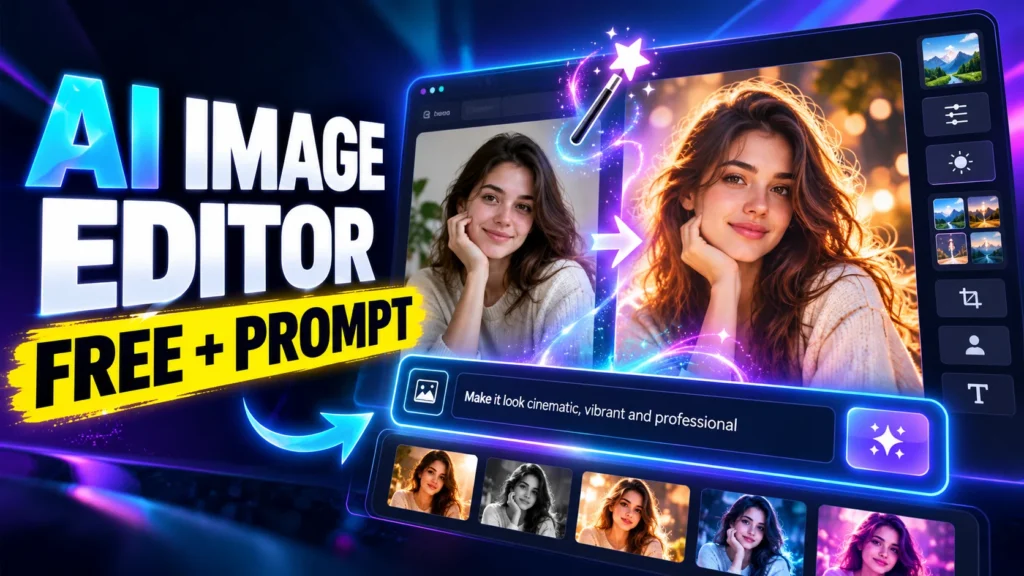
Have you ever wanted to change your photo’s background, create a professional portrait, remove unwanted objects, or turn an ordinary picture into a trending AI image without learning complicated editing software?
The good news is that you can now do many of these things simply by typing a few words.
An AI image editor with prompt free features lets you upload a photo, describe the changes you want, and let artificial intelligence do much of the editing for you. Instead of spending hours adjusting layers, colors, and effects, you can write something like, “Replace the background with a beautiful sunset and add soft cinematic lighting.”
Sounds easy, right?
Whether you’re a student, content creator, blogger, designer, or someone who enjoys experimenting with AI photos, these tools can help you create impressive images directly from your browser.
In this guide, we’ll explore 12 popular AI photo editor free apps, including ChatGPT Images, Recraft, Gemini, Adobe Firefly, Canva, and other online tools. We’ll discuss their features, advantages, limitations, and the types of users who may find them most useful.
Important: Free access does not always mean unlimited editing. Some platforms require an account, limit the number of generations, or reserve certain features for paid users. Always check the current terms before choosing a tool.
What Is an AI Image Editor With a Prompt?
It’s simple. You upload a photo, type what you want changed, and the AI does it. No sliders, no layers, no masks.
Recraft explains it plainly: you describe the edit in everyday language, and the tool swaps an object, switches the style, merges two images or changes a material. Recraft runs each prompt through leading image-to-image models like Nano Banana and GPT Image on one canvas.
A “prompt” is just your instruction. “Remove the people behind me” is a prompt. So is “make this look like a vintage film photo.”
Quick Comparison: Best Free AI Image Editors
Here is a quick overview of the 12 tools covered in this article.
| AI image editor | Best for | Free access |
|---|---|---|
| ChatGPT Images | Conversational photo editing | Yes, with usage limits |
| Recraft | Detailed prompt-based editing | Free tier available |
| NoteGPT AI Image Editor | Simple online AI editing | Check current limits |
| Google Gemini | Creative edits and photo transformations | Free access with limits |
| Genspark AI Photo Editor | AI-assisted photo editing | Check current plan |
| Adobe Firefly | Professional photo manipulation | Free access with limits |
| PhotoEditorAI | AI photo editing workflows | Check current limits |
| EzRemove | Background and object removal | Check current limits |
| Picsart Image to Prompt | Creating prompts from reference images | Check current access |
| EZMaker AI | AI-powered creative editing | Check current access |
| Canva AI Photo Editing | Social media graphics and designs | Free features with restrictions |
| Phedra AI | Creative visual content and design | Check current plan |
This comparison is a starting point, not a verified ranking of editing quality. Features, credits, sign-in requirements, and pricing can change.
1. ChatGPT Images: Best for Editing Photos With Natural Language
Website: https://chatgpt.com/features/images/
ChatGPT Images is a convenient option for people who want to edit images by describing what they have in mind.
You don’t need to learn complicated editing commands. Upload an image, explain the changes you want, and continue refining the result through conversation.
For example, you might upload an ordinary portrait and write:
“Turn this into a professional cinematic portrait. Replace the background with a modern city at night, add subtle blue and purple lighting, and preserve the person’s original facial features and expression.”
You can then ask for additional changes, such as adjusting the lighting, changing the background, or modifying the overall style.
OpenAI’s official documentation explains that users can upload existing images, describe edits in the conversation, and select specific areas of an image for targeted changes. Image creation is available on supported free and paid plans, although usage limits vary. Official ChatGPT Images guide.
Key features
- Edit existing photos using text instructions.
- Generate new images from written prompts.
- Refine images through follow-up requests.
- Make targeted edits using selection tools.
- Create images for blogs, social media, and other projects.
- Use the service through supported web and mobile interfaces.
Advantages
The biggest advantage is simplicity. You can explain your idea naturally without learning a separate editing workflow.
It is also useful when you aren’t sure how to write a good editing prompt. You can describe your goal and improve the instructions step by step.
Limitations
Free usage is limited, and the available features can depend on your account and current product settings. Edits may also change details outside the area you intended to modify.
Best for: Beginners, bloggers, YouTubers, and people who want conversational AI photo editing.
2. Recraft: Best for Advanced Prompt-Based Image Editing
Website: https://www.recraft.ai/prompt-based-ai-image-editing
Recraft is a creative platform that supports AI image generation and prompt-based editing. It is worth considering if you want more control over how an image looks.
Rather than relying entirely on traditional editing tools, you can describe the changes you want in plain language.
For example:
“Replace the background with a futuristic neon city, keep the subject in the foreground, add realistic reflections, and maintain the original composition.”
Recraft’s prompt-based editor supports tasks such as changing styles, replacing objects, modifying materials, and combining visual elements. Its official page also describes a free account with a daily generation and editing allowance, so check the current pricing page for the latest limits. Recraft prompt-based editor.
Key features
- Text-based image editing.
- Object and style changes.
- AI image generation.
- Creative design workflows.
- Support for multiple image-generation and editing models, depending on the available plan.
Advantages
Recraft is particularly interesting for users who want to experiment with visual styles and create polished creative assets.
It can be useful for illustrations, marketing graphics, posters, product concepts, and other design projects.
Limitations
Some models and advanced capabilities may require credits or a paid subscription. Beginners may also need time to explore the available controls.
Best for: Designers, content creators, and users who want more creative control over AI-generated visuals.
3. NoteGPT AI Image Editor: A Simple Online Option
Website: https://notegpt.io/ai-image-editor
NoteGPT offers an online AI image editing tool that is worth exploring if you prefer browser-based tools.
The main attraction of an online editor is convenience. You can visit the website, check its available editing options, and try the features without installing a large desktop application.
Depending on the tool’s current capabilities, AI editing workflows may help you transform images or make specific visual adjustments.
Key features to explore
- Browser-based image editing.
- AI-assisted image transformations.
- Text-based editing, where supported.
- A simple workflow for beginners.
Advantages
An online interface can be easier to approach than professional desktop software. It is also convenient when you want to experiment with AI tools without changing your existing workflow.
Limitations
Check which editing functions are currently available, whether prompt-based editing is supported for your particular task, and whether free usage requires registration or credits.
Best for: Beginners looking for a straightforward online AI image editing experience.
4. Google Gemini: Best for Creative AI Photo Transformations
Website: https://gemini.google/overview/image-generation/
Google Gemini is another strong option for people who want to edit photos using written instructions.
You can upload a photograph and describe the changes you want. For example, you can request a different background, a new artistic style, or a more polished product photograph.
This makes Gemini especially interesting for people who create trending AI portraits and social media content.
Example prompt for Gemini
“Use the uploaded photograph as the reference. Create a cinematic portrait with a warm golden-hour background, soft natural lighting, realistic skin texture, and professional photography. Preserve the person’s recognizable facial identity, hairstyle, and expression as closely as possible.”
Remember that identity preservation is an instruction, not a guarantee. Generative editing can still alter facial details, so review the output carefully.
Google’s official instructions explain how to upload images, request edits, and refine generated results using follow-up prompts. Availability and usage depend on the account, country, and applicable limits. Google’s Gemini image editing guide.
Key features
- Edit uploaded images using prompts.
- Create new images from text descriptions.
- Combine multiple reference images in supported workflows.
- Refine an image with follow-up instructions.
- Experiment with artistic and photorealistic styles.
Advantages
Gemini is useful when you have a specific visual idea but don’t know how to achieve it with conventional editing software.
It is also a convenient choice for testing different photo-editing prompts.
Limitations
Some features require a Google account, and usage limits or supported capabilities may vary. Complex edits can also produce unexpected changes.
Best for: People creating AI portraits, creative photos, social media content, and prompt-based transformations.
5. Genspark AI Photo Editor: Worth Exploring for AI-Assisted Editing
Website: https://www.genspark.ai/tools/ai-photo-editor
Genspark provides an AI photo editor that you can explore for photo transformations and creative editing tasks.
For beginners, a tool like this can be useful when you want to experiment with editing through instructions instead of manually adjusting every detail.
For example, you might want to improve a product photograph, create a more attractive background, or give a portrait a different visual atmosphere.
Key features to check
- AI-assisted photo editing.
- Creative image transformations.
- Prompt-based editing, where supported.
- Browser-based access.
Advantages
It is another option to test when comparing the results of different AI editing services. Different tools can interpret the same prompt differently, so testing more than one editor may help you find a result that better matches your idea.
Limitations
Check the current feature list before uploading an image. Free credits, registration requirements, export options, and editing capabilities may vary.
Best for: Beginners who want to explore alternative AI photo editing workflows.
6. Adobe Firefly: Best for More Controlled Photo Manipulation
Website: https://www.adobe.com/products/firefly/features/ai-photo-editor.html
Adobe Firefly is a useful option for users who want to modify photographs while maintaining control over the editing process.
You can describe a change in plain language and use the available editing controls to guide the result.
For example:
“Remove the unwanted objects from the background and replace the background with a clean, modern office. Keep the main subject unchanged and match the lighting to the original photograph.”
Adobe’s photo manipulation workflow supports adding, removing, or replacing objects, changing backgrounds, and refining results with further prompts. Free access is available for supported features, but usage limits and plan conditions apply. Adobe Firefly photo manipulation.
Key features
- Add, remove, and replace objects.
- Change photo backgrounds.
- Make targeted edits using selection or markup tools.
- Refine lighting, colors, and visual details.
- Continue editing through supported Adobe creative workflows.
Advantages
Firefly is worth considering when you need more control over the area being edited. Its selection and markup options can be helpful when a general text instruction isn’t precise enough.
It is also a useful choice for marketing visuals, product images, and professional creative projects.
Limitations
Not every feature is unlimited or available on every plan. Some workflows may require Adobe account access or additional credits.
Best for: Creators, marketers, and users who want a combination of prompt-based editing and more controlled visual adjustments.
7. PhotoEditorAI: An Option for Everyday AI Photo Editing
Website: https://photoeditorai.io/
PhotoEditorAI is another service to consider when searching for an AI image editor with prompt free online access.
If your goal is to make an image look better without spending time learning complex software, an online AI editor may be a convenient starting point.
Possible use cases to investigate include improving photographs, transforming visual styles, and editing images for online content.
Advantages
- Convenient browser-based access.
- A tool to compare against other AI editors.
- Potentially useful for quick editing tasks.
Limitations
Check the current website for the exact editing functions offered, free usage limits, supported image formats, and account requirements. Don’t assume every prompt-based feature is available for free.
Best for: Users who want to test an additional online AI photo editing service.
8. EzRemove: Best to Consider for Removing Unwanted Elements
Website: https://ezremove.ai/ai-photo-editor/
EzRemove is worth checking if your editing needs focus on cleaning up images or removing unwanted visual elements.
For example, you might want to remove a distracting object from a photograph, clean up a product image, or create a simpler background for a profile picture.
Key features to investigate
- Object removal.
- Background cleanup.
- AI-assisted photo editing.
- Online image processing.
The exact tools available may depend on the current product interface.
Advantages
Focused editing tools can be easier to use when you have one specific problem to solve. You may not need a full design platform just to remove an unwanted object.
Limitations
Check whether the editor supports your exact task, whether free exports are available, and whether image resolution or download options are restricted.
Best for: Users whose main goal is removing unwanted objects or cleaning up photographs.
9. Picsart Image to Prompt: Best for Creating Photo Editing Prompts
Website: https://picsart.com/image-to-prompt/
Picsart’s Image to Prompt tool serves a slightly different purpose from a conventional photo editor.
Instead of focusing only on changing an uploaded image, an image-to-prompt tool helps describe a reference image in words. You can then use that description as a starting point for generating or editing other images.
This is especially useful when you see a trending AI portrait, cinematic photograph, or artistic image and want to understand how to describe a similar visual style.
How it can help
Imagine you find a photograph with dramatic lighting, a dark background, and a cinematic color palette.
An image-to-prompt workflow can help you develop a description covering elements such as:
- Subject and composition.
- Lighting and shadows.
- Camera angle.
- Color palette.
- Background and atmosphere.
- Photography or illustration style.
You can then adapt that description into a photo editing prompt for another AI tool.
Advantages
It can save time when you’re struggling to explain a visual style. It is also useful for people who publish AI photo prompts or maintain a prompt library.
Limitations
Generating a prompt is not the same as editing the original image. The description may omit small details, and the output will not necessarily reproduce the reference exactly.
Best for: AI prompt creators, bloggers, and users who want to recreate a visual style with their own images.
10. EZMaker AI: An Alternative for Creative AI Workflows
Website: https://ezmaker.ai/
EZMaker AI is another platform you can explore when comparing online creative tools.
Before choosing it as your primary editor, check whether the current version supports the exact workflow you need, such as editing an uploaded photo through text instructions or transforming an image into a particular style.
What to look for
- Uploading existing photographs.
- Editing with natural-language instructions.
- Available image styles and transformations.
- Image export quality.
- Free usage and registration requirements.
Advantages
Trying alternative tools can be useful if your preferred editor struggles with a particular task.
For example, one platform might handle background changes well, while another produces a more suitable artistic style.
Limitations
Its current features and free limits should be checked directly on the website. Do not assume that all editing functions are available without payment.
Best for: Users who want another service to compare during their AI editing workflow.
11. Canva AI Photo Editing: Best for Social Media Creators
Website: https://www.canva.com/features/ai-photo-editing/
Canva is particularly useful when you need more than an edited photograph. You may also want to turn that image into a complete Instagram post, YouTube thumbnail, presentation, flyer, or blog graphic.
Its AI photo editing capabilities can help you make visual changes, while its design tools let you combine the finished image with text, shapes, and other elements.
Key features
- AI-assisted photo editing.
- Background and object editing in supported tools.
- Design templates for social media.
- Text and graphic overlays.
- A browser-based design workflow.
Advantages
Canva brings editing and layout design together. That can save time if you regularly create content for multiple platforms.
For example, you could edit a portrait, place it in a thumbnail layout, add a headline, and prepare the design for publishing in the same workspace.
Limitations
Some AI editing features, premium assets, and advanced tools may require a paid plan or have usage limits.
Best for: Bloggers, YouTubers, social media managers, students, and small business owners.
12. Phedra AI: Worth Considering for Creative Visual Content
Website: https://www.phedra.ai/
Phedra AI is another creative platform to investigate when comparing AI-assisted visual editing tools.
It may be relevant if you want to experiment with turning ideas or reference images into polished creative assets.
Before using it for a specific editing task, verify whether its current interface supports uploading an existing image, making text-directed changes, and exporting the result in your preferred format.
Advantages
- Another option to explore for AI-assisted creative work.
- Potentially useful for visual experimentation.
- An alternative to compare with more established editing platforms.
Limitations
Check the current feature set, free plan, and sign-in requirements directly before relying on it for regular work.
Best for: Users exploring different creative AI tools and visual workflows.
Which Is the Best AI Image Editor With Prompt Free Online?
There isn’t one perfect editor for everyone. The best choice depends on the type of image you want to create and how much control you need.
Here is my practical recommendation based on the tools’ intended workflows.
| Your requirement | Tool to try first |
|---|---|
| Edit photos by chatting with AI | ChatGPT Images |
| Create creative designs and visual styles | Recraft |
| Make AI photo transformations | Google Gemini |
| Manipulate objects and backgrounds | Adobe Firefly |
| Design YouTube thumbnails and social posts | Canva |
| Turn a reference image into a prompt | Picsart Image to Prompt |
| Remove unwanted objects | EzRemove |
| Explore additional online editors | NoteGPT, Genspark, PhotoEditorAI, EZMaker AI, Phedra AI |
These are suggested starting points, not results from a controlled performance test.
If you’re new to AI photo editing, start with ChatGPT Images or Gemini for conversational editing. Try Adobe Firefly when you need more precise control, and use Canva when the finished image needs to become a complete design.
How to Edit an Image Using a Prompt for Free
Most prompt-based editing workflows follow a similar process.
Step 1: Choose an AI image editor
Open the tool you want to try. For example, visit ChatGPT Images, Gemini, or Recraft.
Check whether the specific editing feature you need is available on the free plan.
Step 2: Upload your photo
Select a photograph from your device if the tool supports image uploads.
Choose a clear image with enough detail for the AI to understand the subject.
Step 3: Describe the changes you want
Write a clear prompt explaining the result you want.
For example:
“Replace the background with a beautiful mountain landscape, add soft morning sunlight, improve the overall color balance, and keep the subject in the foreground.”
Step 4: Generate the edited image
Submit your instructions and wait for the result.
Depending on the tool, you may receive one or more variations.
Step 5: Refine the result
If the image isn’t quite right, provide another instruction.
For example:
“Make the background less saturated, reduce the artificial-looking skin smoothing, and make the lighting more natural.”
Specific follow-up instructions are often more helpful than repeatedly submitting the same broad prompt.
Step 6: Download and review
Save the finished image if downloading is supported on your plan.
Before publishing it, check for unnatural details, distorted hands, altered facial features, incorrect text, or unwanted changes to the background.
10 Free AI Photo Editing Prompts to Try
A good prompt explains what should change, what should remain unchanged, and what the final image should look like.
Here are 10 examples you can adapt for your own photographs.
1. Professional portrait prompt
“Transform the uploaded photograph into a professional studio portrait. Use soft, balanced lighting, a clean neutral background, natural skin texture, realistic details, and polished professional photography. Preserve the person’s recognizable facial features and expression.”
2. Cinematic portrait prompt
“Transform this photo into a cinematic portrait with dramatic side lighting, a dark atmospheric background, subtle teal and orange color grading, realistic shadows, sharp facial details, and a professional movie-poster aesthetic.”
3. Background replacement prompt
“Replace the existing background with a beautiful luxury hotel interior. Match the new background to the original camera angle, perspective, lighting, and shadows. Keep the main subject in the foreground.”
4. Passport-style photo prompt
“Create a clean passport-style photograph with a plain white background, centered head-and-shoulders composition, even lighting, and natural facial details. Keep the person’s identity and facial proportions as close to the original as possible. Follow the specific photo requirements of the destination authority.”
Always verify the official requirements for dimensions, background, expression, and head position before submitting an identification photo.
5. Product photography prompt
“Turn this product photograph into a professional e-commerce image. Place the product against a clean light background, add soft studio lighting, realistic shadows, accurate material textures, and a sharp commercial photography finish. Preserve the product’s actual shape and visible branding.”
6. Anime photo prompt
“Transform this photograph into a polished anime-style illustration with expressive eyes, clean linework, soft cinematic lighting, detailed hair, vibrant colors, and a beautifully illustrated background. Preserve the recognizable appearance of the subject.”
7. Instagram portrait prompt
“Create a stylish social media portrait with warm natural lighting, a modern aesthetic, subtle background blur, balanced colors, realistic skin texture, and a clean composition suitable for an Instagram post.”
8. Old photo restoration prompt
“Restore this old photograph by reducing visible scratches, dust, fading, and noise. Improve clarity and contrast while preserving the original composition, clothing, facial features, and historical appearance. Do not invent unnecessary details.”
9. YouTube thumbnail photo prompt
“Create a high-impact YouTube thumbnail image using the uploaded subject. Add dramatic studio lighting, strong visual contrast, a clean background, and a clear focal point. Leave sufficient negative space on the right for a headline. Keep the subject recognizable and avoid unnecessary visual clutter.”
10. Trending AI photo prompt
“Transform this photograph into a modern editorial portrait with soft cinematic lighting, a fashionable color palette, a visually interesting background, realistic textures, and professional composition. Keep the subject recognizable and make the final result look polished rather than heavily filtered.”
You can use these prompts as starting points in a compatible AI editor. Results will vary by model, input image, and the precision of the instructions.
Can You Use an AI Image Editor With Prompt Free No Sign Up?
Sometimes, but it depends on the platform and the specific feature.
Some AI tools allow limited access without creating an account. Others require you to sign in before uploading images, generating edits, or downloading results.
If you specifically need an AI image editor with prompt free online no sign up, use this approach:
- Open the official website.
- Check whether the editor is available immediately.
- Try a sample image or the provided demo, if available.
- Confirm whether image uploads and downloads require an account.
- Check whether the free allowance is sufficient for your task.
Do not assume that a tool is registration-free simply because its homepage is publicly accessible.
Also, be careful with private photographs. Read the service’s privacy policy before uploading sensitive images, and avoid uploading confidential documents or photographs of other people without appropriate permission.
Is There an AI Image Editor With Prompt Free No Restrictions?
Most reputable AI image editing services have some form of limitation.
These may include daily credits, monthly generation allowances, file-size restrictions, watermarks, lower-resolution exports, account requirements, or paid access to advanced models.
The phrase AI image editor with prompt free no restrictions is therefore worth treating cautiously.
A service may offer free editing but restrict the number of generations. Another may let you edit without a subscription but require an account. A third may allow free previews while charging for high-resolution downloads.
Before choosing a tool, compare the features you actually need rather than relying on the word “free” alone.
Can You Download a Free AI Image Editor?
Yes. Some AI image editors offer mobile apps or desktop software, while others work directly in your browser.
For most beginners, an online editor is a convenient starting point because it does not require installing additional software.
If you specifically want an AI image editor with prompt free download, check the official website or your device’s official app store.
Before installing anything, verify:
- Whether prompt-based editing is supported.
- Whether the app is available for your operating system.
- Whether editing requires an internet connection.
- Whether a free plan includes image exports.
- Whether in-app purchases or subscriptions are required.
Avoid unofficial download websites that distribute modified installers or promise unlimited premium access.
Is a Free AI Photo Editor Good Enough for Professional Work?
It can be, depending on the project.
A free AI editor may be sufficient for blog illustrations, social media posts, personal portraits, simple product photos, and creative experiments.
However, professional projects may require more careful control over image quality, branding, color consistency, and fine details.
For example, a blogger creating a featured image may be happy with a free editor. An online store preparing product photographs may need to verify that the AI hasn’t changed the actual product’s appearance.
Similarly, a designer working on a campaign may need more precise control over composition and export quality.
The best approach is to test your chosen tool with a real project before relying on it for regular production.
FAQs
1. What is the best AI image editor with prompt free?
ChatGPT Images, Google Gemini, Recraft, and Adobe Firefly are useful starting points for prompt-based editing. The best option depends on whether you need conversational edits, creative styles, or more controlled object manipulation. Free features and usage limits vary.
2. Which AI image editor is free online?
Several services offer some form of free online access, including ChatGPT Images, Gemini, Recraft, and Adobe Firefly. The exact features available without payment may change, so check the official website before starting.
3. Can I edit photos with AI prompts without signing up?
Some tools may provide limited demonstrations or editing features without registration, but others require an account. Check the individual tool’s current requirements before uploading your photo.
4. Can I use Gemini to edit my existing photos?
Yes. Google’s Gemini Apps support uploading an image and requesting changes through written instructions in supported workflows. Availability and usage limits depend on your account and location. See the official Gemini image editing guide.
5. How do I get better results from an AI photo editing prompt?
Describe the subject, the change you want, the desired style, and any important details that must remain unchanged. Use follow-up instructions to refine the result, and inspect the final image for errors before publishing it.
Final Thoughts
Finding the right AI image editor with prompt free online can make photo editing much easier, especially if you are just getting started.
You don’t need to master complicated software to experiment with creative backgrounds, cinematic portraits, product images, or trending AI photo styles. In many cases, you can start with an ordinary photograph and a clear written instruction.
My suggestion is to try ChatGPT Images or Gemini first if you prefer simple, conversational editing. Explore Recraft if you want to experiment with creative styles, Adobe Firefly if you need more control over photo manipulation, and Canva if you want to turn your edited image into a complete design.
Remember that free plans often have limits, and no AI editor will produce a perfect result every time.
Start with one tool, test it using a real photograph, and refine your prompts until you find a workflow that suits your needs.
Ready to try AI photo editing? Choose one of the tools above, upload a suitable image, and experiment with the sample prompts in this guide. You may be surprised by how much you can accomplish with a few well-written instructions.
Sushil Kumar is a results-focused digital marketer specializing in SEO, content planning, and AI-powered workflows. His platform offers easy-to-use AI prompts for creating professional photos.