If you have ever sat in a meeting thinking, “I’ll remember this later,” and then forgotten everything by evening, you are not alone. This is exactly where new ai tools like Otter AI step in. If you are searching for how to use Otter AI, this guide is written for you, especially if you are completely new.
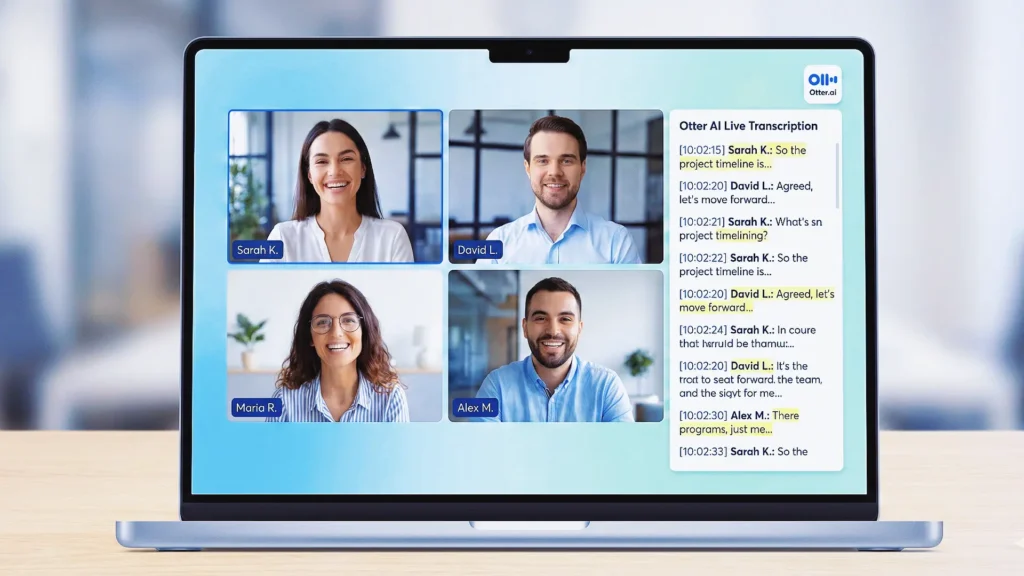
Otter AI is one of the most popular live transcription AI tools right now. It listens to conversations, meetings, lectures, or interviews and turns spoken words into written text in real time. Whether you are a student, freelancer, content creator, or office professional, this free transcription ai tool can quietly save you hours every week.
In this article, I will walk you through Otter transcription ai tool from a beginner’s point of view. No technical jargon. No marketing hype. Just clear steps, real use cases, and honest insights based on hands-on experience.
What Is Otter AI and Why Is It So Popular?
Otter AI is an intelligent transcription AI platform designed to convert audio and video conversations into accurate text. It works for live meetings as well as uploaded recordings.
What makes this transcription free tool stand out from many other transcription AI tools is its balance of simplicity and power. You do not need any technical skills to get started, yet it offers advanced features that professionals actually use.
Key Reasons People Choose Otter AI
- Real-time meeting transcription AI
- Works with Zoom, Google Meet, and Microsoft Teams
- Supports audio transcription AI and video transcription AI
- Speaker identification
- Searchable notes with timestamps
- Free plan available for beginners
Otter AI Sign Up: Step-by-Step for First-Time Users
Getting started is easy, and you can do it in under five minutes.
Step 1: Create Your Account
Go to Otter AI’s official website and click on “Sign Up.”
You can register using:
- Google account
- Microsoft account
- Email and password
For beginners, signing up with Google is the fastest option.
Step 2: Choose a Plan
Otter offers:
- Free plan (great for testing)
- Paid plans for professionals and teams
If you are new, start with the transcription AI free plan. You can upgrade anytime later.
Step 3: Basic Setup
Once logged in:
- Set your language preferences
- Allow microphone access if you plan to use live transcription
- Connect your calendar if you want automatic meeting notes
How to Use Otter AI for Live Transcription
This is where AI Otter truly shines.
Using Otter AI During Meetings
- Open Otter AI on web or mobile app
- Click “Record”
- Start speaking or join a meeting
- Otter begins live transcription AI instantly
You will see text appearing in real time, along with timestamps.
Using Otter AI with Zoom, Google Meet, or Teams

Otter can automatically join meetings as a virtual assistant.
- Connect your calendar
- Enable meeting sync
- Otter joins scheduled meetings and records notes
This feature is extremely useful if you attend frequent online meetings.
How to Use Otter AI for Audio Transcription
If you already have recordings, Otter AI handles them smoothly.
Uploading Audio Files
Supported formats include:
- MP3
- WAV
- M4A
Steps:
- Click “Import”
- Upload your audio file
- Wait a few minutes
- Get clean, editable text
This makes Otter AI a reliable audio transcription AI for interviews, podcasts, or voice notes.
How to Use Otter AI for Video Transcription
Otter AI also works as a video transcription AI tool.
Best Use Cases
- YouTube video notes
- Webinar summaries
- Online course lectures
You simply upload the video file or import audio from it. Otter processes the speech and gives you searchable text.
Otter AI Uses: Real-Life Examples
Here is how people actually use Otter AI, not just how it is marketed.
For Students
- Record lectures
- Review notes before exams
- Search keywords instead of rewatching videos
For Professionals
- Meeting summaries
- Action items tracking
- Client call documentation
For Content Creators
- Convert podcasts into blog posts
- Create subtitles and captions
- Speed up content repurposing
For Journalists and Researchers
- Interview transcription
- Quote verification
- Faster research documentation
Editing, Highlighting, and Exporting Transcripts
Otter AI is not just about raw transcription.
Editing Text
You can:
- Correct mistakes
- Rename speakers
- Add custom vocabulary
Highlighting Key Points
Use highlights to mark:
- Important ideas
- Decisions
- Follow-up tasks
Export Options
You can export transcripts as:
- TXT
- DOCX
- SRT (for subtitles)
This makes Otter AI flexible compared to many other transcription AI tools.
Otter AI Review: Honest Pros and Cons
Based on real usage, here is a balanced Otter AI review.
Pros
- Very beginner-friendly
- Accurate for clear English audio
- Excellent live transcription
- Strong free plan
- Great search and timestamps
Cons
- Struggles with heavy accents sometimes
- Free plan has monthly limits
- Advanced features require paid plans
Overall, for new users, Otter AI delivers more value than most competitors.
Otter AI vs Other Transcription AI Tools
Compared to other meeting transcription AI platforms:
- Otter AI is simpler than enterprise-heavy tools
- More accurate than many free transcription apps
- Better real-time performance than upload-only tools
If you are a beginner, Otter AI is one of the safest starting points.
FAQs About Otter AI
Is Otter AI free to use?
Yes. Otter AI offers a free plan with monthly transcription limits. It is perfect for beginners.
Can Otter AI transcribe live meetings?
Yes. It is one of the best tools for live transcription AI, especially for online meetings.
Does Otter AI work for video transcription?
Yes. You can use Otter AI as a video transcription AI by uploading video files.
How accurate is Otter AI?
Accuracy is high for clear audio in English. Background noise and strong accents may reduce accuracy slightly.
Is Otter AI good for beginners?
Absolutely. The interface is simple, and you can start transcribing within minutes.
Final Thoughts: Should You Use Otter AI?
If you are new to transcription tools and wondering how to use Otter AI, the answer is simple: start using it and learn as you go.
Otter AI removes the stress of note-taking and lets you focus on listening and thinking. From meetings to lectures to content creation, it quietly becomes part of your workflow.
My advice? Start with the free plan, use it for a week, and see how much time you save. Once you experience that, upgrading feels like a practical decision, not a sales pitch.
If you found this guide helpful, try Otter AI today and turn your conversations into clear, searchable knowledge.

Sushil Kumar is a digital marketer known for his practical strategies and clear, results-focused execution. He helps creators and small businesses grow through SEO, content planning, and the smart use of AI tools. At https://sushilprompt.com/, he shared AI photo editing prompts for ChatGPT, Gemini AI, and others AI Tools. Using these prompts, anyone can easily create their own professional photos.