Artificial intelligence tools are popping up everywhere. Some are confusing. Some are overhyped. And then there are tools like Kimi AI that quietly surprise you with how capable they actually are.
If you’re new and wondering how to use Kimi AI, you’re in the right place. I’ll walk you through everything in simple language. No technical overload. No buzzwords. Just clear steps, real examples, and practical tips you can use today.
Let’s get started.

What Is Kimi AI?
Kimi AI is an advanced AI chatbot and productivity assistant developed by Moonshot AI. It gained attention because of its strong long-context understanding, meaning it can process large documents, long PDFs, and complex instructions better than many other AI tools.
Unlike basic chatbots that struggle with large inputs, the kimi ai model is built to handle extended text, summarize documents, generate content, help with coding, and even create structured presentations.
In simple words?
It’s like having a smart assistant who reads fast, thinks clearly, and writes well.
Why Is Kimi AI Getting Popular?
Here’s why many beginners are curious about it:
- Strong document reading capability
- Supports long conversations
- Fast responses
- Clean, simple interface
- Often available as kimi ai free for users
- Useful for students, creators, and professionals
Some tech analysts have compared its performance with major AI systems like Google’s Gemini models, especially in text understanding tasks.
How to Use Kimi AI for Smarter Workflows
Let’s break this down into easy steps.
Step 1: Access Kimi AI
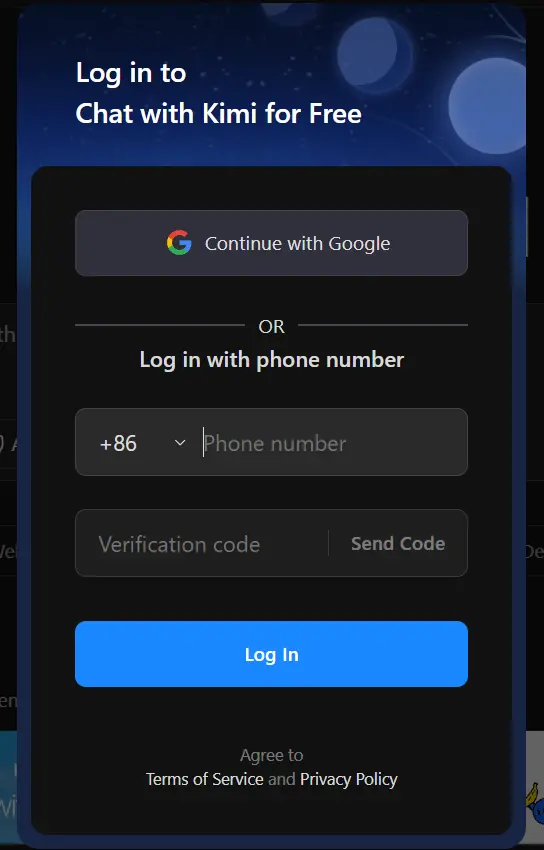
To begin:
- Visit the official Kimi AI website.
- Click on kimi ai login.
- Sign up using email or available login options.
- Verify your account.
That’s it. No complicated setup.
If you’re using mobile, you can check if the kimi ai app is available in your region. Some users access it through browser-based versions instead of installing.
Step 2: Understand the Dashboard
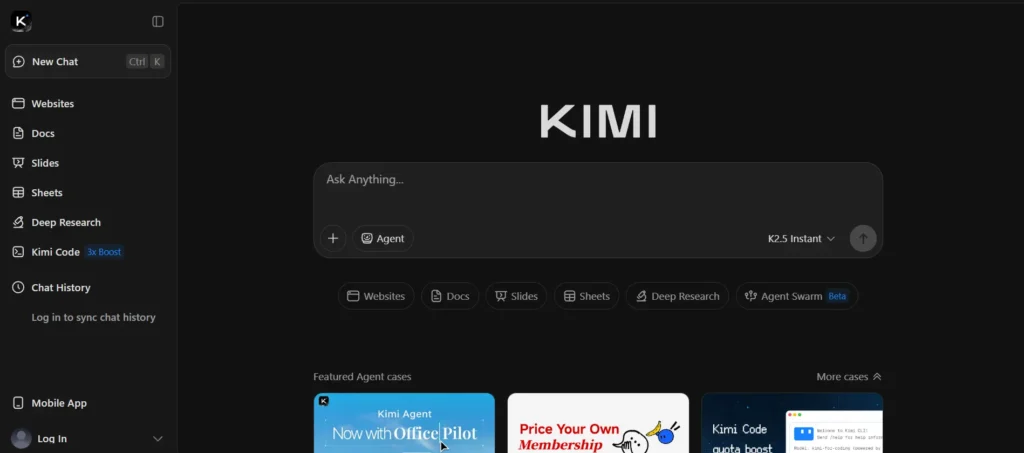
When you log in, you’ll see:
- Chat input box
- Upload document option
- Conversation history
- Settings
It’s designed like most AI chat interfaces, so if you’ve used a chatbot before, it’ll feel familiar.
Step 3: Start with Simple Prompts
If you’re new, don’t overcomplicate things. Start simple.
Instead of writing:
“Generate an optimized, SEO-friendly, conversion-focused article with semantic keyword clustering.”
Try:
“Write a simple blog post about healthy morning habits for beginners.”
Kimi AI responds better when instructions are clear and direct.
Step 4: Upload Documents (This Is Where It Shines)
One of the biggest strengths of the kimi ai tool is document handling.
You can:
- Upload PDFs
- Paste long research papers
- Add large reports
- Insert meeting transcripts
Then ask:
- “Summarize this in 5 bullet points.”
- “Explain this like I’m a beginner.”
- “Turn this into presentation slides.”
- “Create notes for exam revision.”
For students and researchers, this feature is powerful.
Step 5: Create Presentations (Kimi AI PPT Feature)
Need quick slides?
You can use kimi ai ppt capabilities by prompting like this:
“Create a 10-slide presentation outline on digital marketing basics.”
It will generate:
- Slide titles
- Bullet points
- Structured flow
You can then copy it into PowerPoint or Google Slides.
Kimi AI vs Gemini: Which Is Better?
Many beginners search for Ikimi ai vs gemini comparisons.
Here’s a simple breakdown:
| Feature | Kimi AI | Gemini (Google) |
|---|---|---|
| Long document handling | Very strong | Good |
| Integration with Google tools | Limited | Excellent |
| Coding support | Decent | Strong |
| Mobile ecosystem | Growing | Mature |
| Research summarization | Strong | Strong |
Gemini integrates deeply with Google Workspace. If you use Gmail, Docs, and Drive daily, Gemini may feel more connected.
But if your priority is reading large documents and structured text generation, many users prefer Kimi AI’s approach.
It really depends on your workflow.
What Can You Actually Do with Kimi AI?

Here are practical use cases for beginners:
1. Students
- Summarize textbooks
- Generate revision notes
- Explain difficult topics simply
- Create essay drafts
2. Content Creators
- Blog outlines
- Script writing
- Social captions
- SEO topic ideas
3. Business Users
- Meeting summaries
- Proposal drafts
- Email writing
- Presentation outlines
4. Developers
- Code explanation
- Debugging help
- Logic breakdown
Is Kimi AI Free?
Many users search for kimi ai free options.
At different times, Kimi AI has offered free usage tiers with limitations. These may include:
- Daily usage limits
- File size restrictions
- Feature caps
Always check the official pricing page for updated details.
If you’re testing tools before investing, the free tier is usually enough to understand its strengths.
Kimi AI Model: What Makes It Different?
The kimi ai model gained attention for its large context window. That means:
- It remembers more of the conversation.
- It processes longer documents.
- It handles complex instructions better.
Long-context AI models are especially useful in:
- Legal document analysis
- Research synthesis
- Large codebase review
- Multi-step content creation
This is where many traditional chatbots struggle.
Using Kimi AI as an AI Agent
Some users refer to kimi ai agent functionality. What does that mean?
An AI agent typically:
- Executes multi-step tasks
- Follows instructions autonomously
- Maintains structured workflows
While Kimi AI may not replace full automation platforms, you can simulate agent-style workflows by:
- Giving step-based instructions.
- Asking it to plan before executing.
- Requesting structured outputs.
Example:
“First, create a content strategy. Then write 5 blog outlines. Then suggest keywords.”
It will follow the flow logically.
How To Download Kimi AI App
Here’s how to download the Kimi AI app in simple steps:
- Open the App Store on your iPhone or iPad
- Search for “Kimi” or “Kimi – Now with K2.5”
- Tap “Get” then “Install”
- Open the app and sign up with email, phone, or WeChat
For Android
- Open Google Play Store on your phone
- Search for “Kimi” (look for the developer Moonshot AI)
- Tap “Install”
- Launch the app and create your free account
Quick Tips
- App size: About 135 MB
- It’s free to download and use basic features
- Same account works on both mobile and web (kimi.ai)
- No credit card needed to start
Can’t Find It?
If it’s not available in your region’s app store, you can always use the web version at kimi.ai in your phone browser it works just as well!
FAQs About How to Use Kimi AI
Q: Is Kimi AI actually free, or will I hit a paywall after a week?
A: The core functionality is genuinely free and unlimited for personal use. You’ll only need to upgrade if you require API access, priority processing during peak times, or need to process massive volumes of documents daily.
Q: How does Kimi AI compare to ChatGPT for creative writing?
A: ChatGPT still has the edge for pure creative flair and diverse writing styles. Kimi excels at technical writing, structured analysis, and document processing. Many users (myself included) use both: Kimi for research and data-heavy tasks, ChatGPT for brainstorming and creative projects.
Q: Can I use Kimi AI for commercial projects?
A: Yes, but check the specific terms for your region. The API is designed for commercial integration, and the free tier allows commercial use in most jurisdictions. Enterprise users should contact Moonshot AI directly for SLA guarantees and custom deployment options.
Q: Is my data safe with a Chinese AI company?
A: Moonshot AI stores data according to Chinese cybersecurity laws. For sensitive personal information or confidential business data, use the API with local deployment options or avoid uploading truly sensitive materials. Standard operational data is handled with industry-standard encryption.
Q: Does Kimi AI work in languages other than English and Chinese?
A: While optimized for English and Chinese, Kimi supports 50+ languages with varying degrees of proficiency. For critical tasks in other languages, verify outputs carefully or stick to English/Chinese for best results
Final Words
If you’ve made it this far, you already understand one thing clearly: learning how to use Kimi AI isn’t complicated. It’s about giving clear instructions, experimenting with prompts, and using its long-document strength to your advantage.
For beginners, Kimi AI is a practical tool. You can summarize PDFs, create blog drafts, build presentation outlines with kimi ai ppt, and even structure multi-step tasks like a lightweight kimi ai agent. Whether you’re testing the kimi ai free version or exploring advanced features, the key is simple practice.
Instead of comparing endlessly like Ikimi ai vs gemini, focus on your own workflow. Try real tasks. Upload a document. Create a structured outline. Refine the output. That’s how you actually unlock value from any kimi ai chatbot or AI platform.
Technology keeps moving forward. The advantage goes to people who adapt early.
So log in, experiment, and make Kimi AI part of your daily productivity system. The more you use it, the smarter your workflow becomes.

Sushil Kumar is a results-focused digital marketer specializing in SEO, content planning, and AI-powered workflows. His platform offers easy-to-use AI prompts for creating professional photos.