AI image generators are everywhere now. Midjourney, DALL·E, Leonardo, Stable Diffusion. For a beginner, it’s overwhelming. Recraft AI stands out because it focuses on practical design. It is not just about pretty pictures. It’s about creating usable images like icons, illustrations, vectors, social media visuals, and even upscaled images for real projects.
If you’ve been searching for how to generate image using Recraft AI, this guide will help you understand
What Is Recraft AI?
Recraft AI is an AI-powered image generator and design platform built especially for designers, creators, marketers, and beginners who want clean, editable visuals.

Unlike many New AI tools that only generate raster images, This image generator tool is known for:
- Vector image generation (SVG)
- Icon creation
- Illustration styles
- Image upscaling
- Brand-friendly visuals
In simple words, Recraft AI helps you generate images that you can actually use in websites, apps, posters, and social media.
Why Recraft AI Is Different From Other AI Image Generators
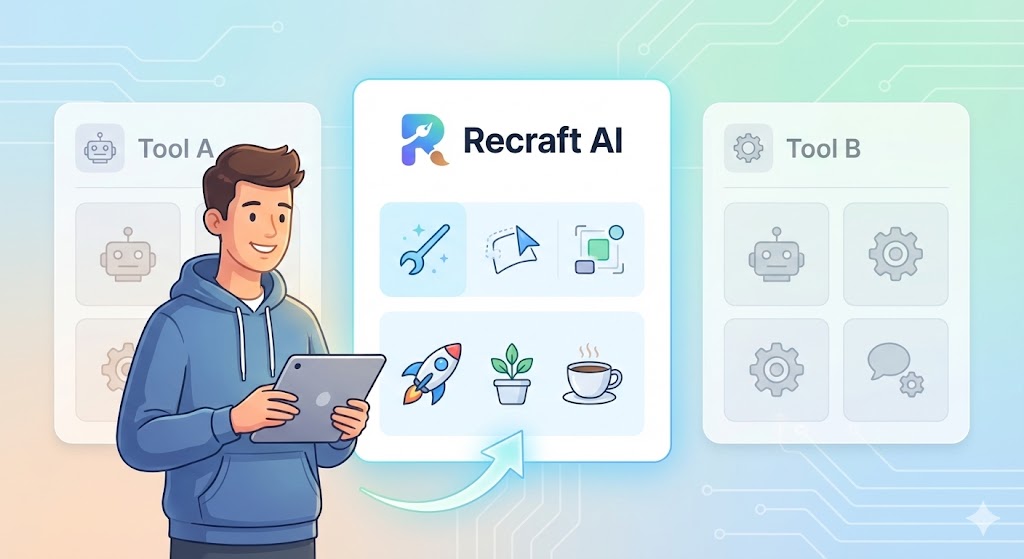
Here’s something I noticed after testing multiple ai image generator tools.
Most AI photo generators are great for art. Recraft AI is great for design.
Key Differences:
- Vector support: You can export SVG files, which is rare
- Consistent styles: Perfect for branding
- Beginner-friendly UI: No complex settings
- Built-in image upscaler: Clean, sharp results
- Free plan available: Great for new users
This makes it a strong contender for the best AI image generator free category, especially for beginners.
How to Get Started
Before learning how to generate images, you need access.
Recraft AI Login Steps:
- Visit the official Recraft AI website
- Click on Sign Up / Login
- Choose login method:
- Google account
- Email and password
- Once logged in, you’ll land on the dashboard
No complicated verification. I was inside in under a minute.
Recraft AI Pricing: Free vs Paid Plans
This is one of the most common beginner questions.
Recraft AI Free Plan:
- Limited credits per month
- Access to core image generation
- Basic styles and exports
- Good enough to learn and test
Paid Plans:
- More generation credits
- Faster processing
- Advanced styles and models
- Better export options
For beginners, the free image generator option is more than enough. I personally tested the free plan for weeks before even thinking about upgrading.
How This Free AI Image Generator Works
You don’t need to understand machine learning to use Recraft free AI, but it helps to know the basics.
Recraft AI uses trained AI models that understand:
- Shapes
- Design balance
- Color harmony
- Typography spacing
- Vector structure
When you enter an ai image generator prompt, the model doesn’t just “draw.” It designs based on visual rules designers use every day.
That’s why results often look cleaner than generic AI art.
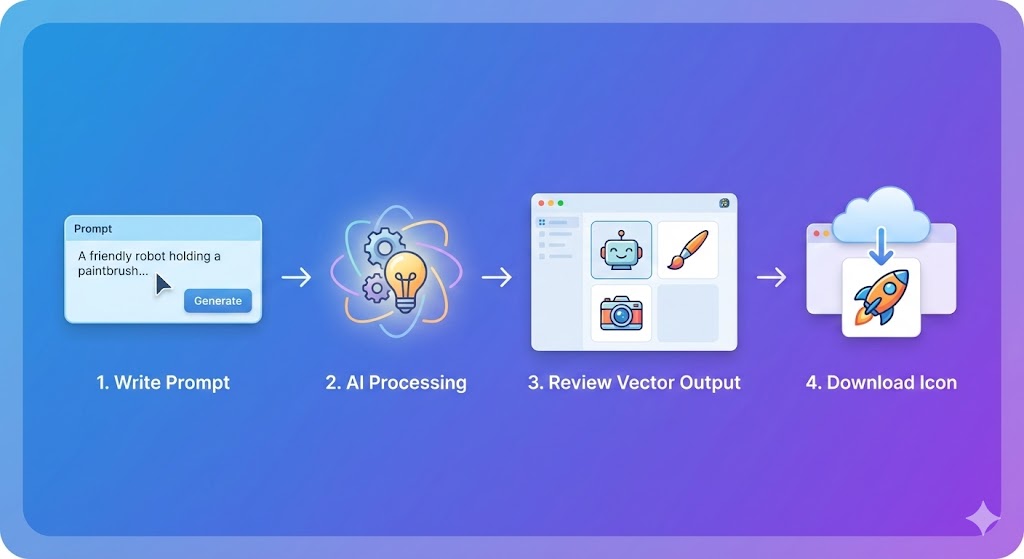
How to Generate Image Using Recraft AI (Step-by-Step)
Now the main part you came for.
Step 1: Log In to Recraft AI
After login, you’ll see the main workspace with a trending Image prompt box and style options.
Step 2: Choose What You Want to Create
Recraft AI lets you choose:
- Illustration
- Icon
- Vector graphic
- Raster image
- Upscaled image
For beginners, start with Illustration or Icon.
Step 3: Write a Simple Prompt
This is where many beginners overthink.
Bad prompt:
Create a hyper-realistic cinematic ultra-detailed masterpiece
Good prompt:
Flat vector illustration of a young person working on a laptop, modern style, soft colors
Keep it:
- Clear
- Specific
- Simple
Step 4: Select Style and Format
You can choose:
- Flat
- Minimal
- 3D
- Line art
- Color palette
- Vector or PNG output
If you want scalable designs, choose SVG vector.
Step 5: Click Generate
Recraft AI usually takes a few seconds.
You’ll see multiple variations. This is helpful because:
- You can compare styles
- You don’t need to regenerate from scratch
Step 6: Edit or Refine
You can:
- Adjust prompt
- Change colors
- Regenerate variations
- Upscale the image
This is where Recraft AI feels more like a design tool than a toy.
Step 7: Download Your Image
Export options include:
- SVG (vector)
- PNG
- High-resolution images
Perfect for:
- Websites
- Apps
- Social media
Using Recraft AI as an Image Upscaler
One underrated feature is the image upscaler.
You can upload:
- Old low-resolution images
- AI-generated images from other tools
Recraft AI enhances:
- Sharpness
- Edges
- Color clarity
This alone makes it useful even if you already use other AI image generators.
FAQs: How to Generate Image Using Recraft AI
1. Is Recraft AI free to use?
Yes, Recraft AI offers a free plan with limited credits, which is perfect for beginners.
2. Do I need design skills to use Recraft AI?
No. The interface is beginner-friendly, and prompts can be simple.
3. Can I use Recraft AI images commercially?
Yes, but always check the license terms based on your plan.
4. Is Recraft AI better than other AI image generators?
For vector design and clean illustrations, yes. For photorealistic art, other tools may be better.
5. Does Recraft AI support SVG files?
Yes, and this is one of its strongest features.
Final Thoughts:
If you’re new to Image Generator AI tools and want something practical, Recraft AI is a smart starting point.
It doesn’t overwhelm you. It doesn’t demand technical knowledge. And it gives results you can actually use.
If you’ve been searching for how to generate image using Recraft AI, now you have a clear roadmap.
My suggestion:
Start with the free plan. Play with photo prompts. Export vectors. Use the upscaler. Once you see the value, upgrading becomes an easy decision.
Sushil Kumar is a results-focused digital marketer specializing in SEO, content planning, and AI-powered workflows. His platform offers easy-to-use AI prompts for creating professional photos.